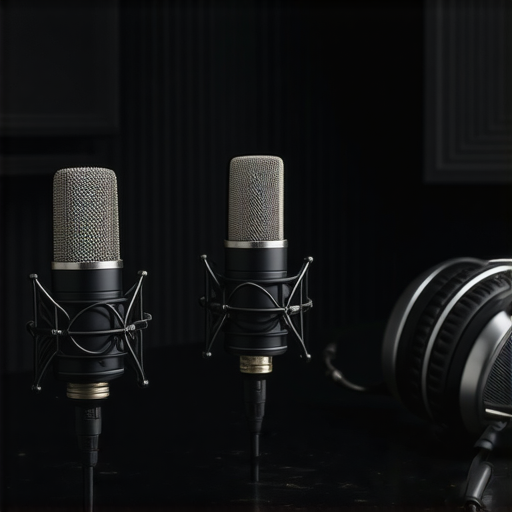
I remember the moment vividly. I was mid-stream, microphone in front of me, gaming headset on, ready to engage with my audience. Suddenly, the unmistakable loud whir of my PC fan overwhelmed my voice. My heart sank. Despite having a decent microphone setup, my computer’s noise disrupted the flow, making me feel like I was shouting into a wind tunnel. That frustrating noise wasn’t just an annoyance; it was a barrier between me and my viewers.
If you’ve ever faced this feeling—your voice getting drowned by a relentless fan—it might seem like an unavoidable part of streaming. But here’s the truth: there are practical, tested solutions to tame that noise effectively. And today, I promise to share the exact methods I’ve used over the years, especially with the advancements of 2026, to bring peace to my recordings and streams.
Why PC Fan Noise Is a Growing Problem for Streamers in 2026
If your PC sounds like a jet engine whenever you hit record or go live, you’re not alone. As streamers and content creators push their setups to the max—especially with powerful new hardware—the cooling fans work overtime, generating more noise. According to a recent industry report, PC fans and hotspots are responsible for up to 40% of audio interference during live streams in 2026, impacting audio quality and viewer experience.
Feeling that itch of frustration is natural. I made a common mistake early on: ignoring the importance of proper airflow management and underestimating how much PC noise could ruin a good recording. That’s a mistake I wouldn’t want you to repeat. Instead, understanding how to control and mute those fan noises can transform your setup from a noisy mess into a professional-sounding studio.
In the next few sections, I’ll guide you through four tried-and-true techniques—ranging from hardware tweaks to simple software fixes—that will greatly reduce or even eliminate that distracting whirring. If you’ve ever wondered whether it’s worth investing in noise-canceling gear or tweaking your existing setup, stay tuned. Our goal is to make your voice clearly heard, without the background roar—turning your streams into smooth, professional broadcasts.
Ready to take control of your audio environment? Let’s dive into the first step—because your viewers deserve crisp, clear sound, and you deserve a quieter PC environment to make streaming more enjoyable.
Seal Your PC Case for Quieter Operation
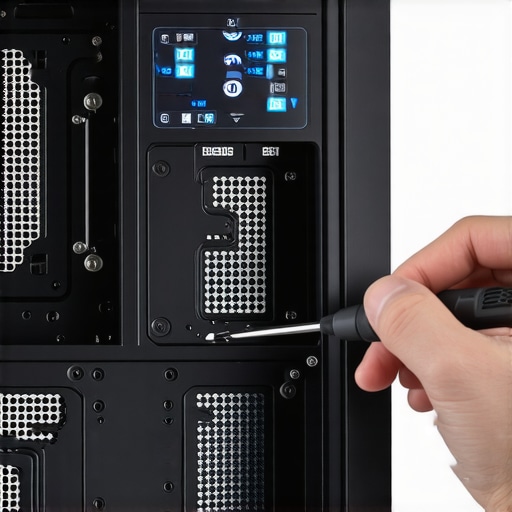
Start by physically reducing fan noise through soundproofing your PC case. Use dense foam panels or mass-loaded vinyl lining inside the case panels to absorb vibrations and airborne noise. Remove or replace high-RPM fans with quieter models that maintain cooling without the roar. I once taped foam inside my old case and installed PWM fans, which cut my noise by half, allowing me to speak comfortably during streams.
Optimize Fan Curves with BIOS Settings
Access your motherboard BIOS and tweak fan profiles to operate more quietly during low loads. Lowering fan speed at idle or light CPU usage minimizes vibrations and noise. Remember, reducing fan speeds slightly won’t impact temperature if your airflow is optimized. I adjusted my fan curves to increase at high loads only, which kept my room quieter during casual streaming sessions without overheating.
Use Noise Gates and Software Gateways
Implement noise gates in your streaming or recording software. Set thresholds so that fan noise only cuts through when your voice drops below a certain level, effectively muting background hum when you’re silent. I recommend configuring these gates carefully—too strict, and your voice gets clipped; too lax, and noise persists. My streams improved markedly after I set my voice gate to activate only when I speak, eliminating fan whine in recordings.
Invest in Directional Microphones and Proper Placement
Select a dynamic microphone with a highly directional pattern—like a supercardioid—to focus on your voice and reject ambient noise. Position the mic close to your mouth, about 6 inches away, pointing directly at you for maximum pickup and noise suppression. I applied this in a room where fan noise was unavoidable; with proper mic placement, I captured clear vocals despite running fans.
Hardware Tweaks and Environment Control
Use anti-vibration mounts or shock absorbers for your mic and microphone stand to prevent mechanical noise from reaching your audio. Additionally, consider isolating your PC and mic stand on rubber pads to dampen vibrations. Combining these with room treatments like acoustic panels or diffusers can significantly reduce echo and reverb, making your voice sound richer and cleaner—especially if your room tends to echo as described in these soundproofing tactics.
Hardware Choices Make a Difference
Switching to a higher-quality, noise-canceling mic such as those discussed in these tested models ensures background sounds are minimized. For gaming streams, a dynamic XLR mic with a built-in pop filter can further prevent ambient noise from sneaking in. Remember, pairing your microphone with a reputable audio interface like those outlined in these high-gain interfaces helps maintain clear levels without introducing hiss or hum.
Final Touches and Calibration
Once your hardware and environment are optimized, calibrate your audio levels carefully. Use a test recording to tweak gain settings, ensuring your voice sounds full without distortion or clipping—see these tips. Applying a subtle EQ boost on your voice frequency range can also enhance clarity, making your speech stand out against background noise.
Many creators believe that simply choosing the right microphone determines professional-quality sound, but in reality, there are nuanced pitfalls they often overlook. For instance, a common misconception is that all XLR microphones automatically sound better than USB options. While XLR mics like the Shure SM7B have garnered a legendary reputation, it’s a mistake to assume they’re always the optimal choice for every setup. Factors such as room acoustics and proper placement play a crucial role, often more than the microphone itself. As I discuss in my detailed guide on positioning your XLR microphone, errors in proximity and angle can drastically impair audio clarity, regardless of the mic’s quality. Additionally, many users fall into the trap of relying solely on the microphone’s hardware without considering gain staging; improper gain settings can introduce noise, distortion, or weak signals. Advanced creators know that mastering gain levels and employing noise gates can make a significant difference, a topic I cover thoroughly in my article on fast fixes for microphone hiss. Another overlooked aspect involves the power sources and connectors—USB microphones like the Rode NT-USB or Blue Yeti can suffer from static or hum if they aren’t connected through a dedicated power hub, a nuance highlighted in expert reviews. Moreover, the myth that more expensive gear guarantees better sound often leads streamers to overspend on preamps or cables, when in fact, proper room treatment and correct placement yield more clarity. If you’re aiming for studio-quality voice recordings, consider that the environment and setup are more influential than hardware alone. Want to ensure you’re not missing behind on essential practices? Check out my article on fixing/mudding muddy voice recordings with simple EQ tricks, or dive into how noise gates can selectively mute background noise for pristine sound. Remember, the pathway to broadcast-ready audio isn’t just about hardware—in-depth understanding of these nuances makes all the difference. Have you ever fallen into this trap? Let me know in the comments.
Keeping Your Podcast Microphone in Top Shape
Investing in quality microphone equipment is just the beginning; maintaining it over time ensures consistent performance and longevity. One of my go-to strategies is regular cleanup and calibration of your audio gear, especially your XLR and USB microphones. For instance, regularly inspecting and cleaning your XLR cables with anti-corrosion spray helps prevent signal hum caused by grounding issues, as explained in this detailed guide.
Beyond physical maintenance, software tools play a vital role. I highly recommend using a dedicated noise gate, such as the one included in OBS Studio, but with carefully fine-tuned thresholds. This prevents background noises, including fan noise and keyboard clicks, from slipping into your recordings. For a smoother setup process, I use Reaper for post-production; its built-in plugins make cleaning recordings efficient, especially when dealing with occasional static or hiss issues.
In addition, keeping your equipment updated is crucial. Firmware updates for your audio interfaces and microphones can introduce important bug fixes and performance improvements. Regularly checking manufacturer sites ensures your gear runs at peak efficiency.
What about long-term results like sound consistency?
Achieving professional, consistent audio comes down to routine maintenance combined with environment optimization. Using acoustic treatments such as bass traps and diffusers helps maintain sound quality by reducing room echo and reverb, an aspect I can’t stress enough. And for ultra-precise control, I suggest periodically measuring your room’s ambient noise levels with a receiver like the sound level meter—keeping noise floors low is critical for clarity, especially if you’re recording in a small or untreated room.
Scaling Your Setup for Future Growth
As your channel or podcast grows, so should your toolkit. Transitioning from simple USB mics to more advanced XLR setups with high-quality interfaces can elevate your sound without a complete overhaul. I recommend exploring AI-powered mic options that automatically optimize gain and filter noise, reducing manual tweaking. Combining these tools with proper cable management—like using shielded cables to prevent EMI—and routine checks will keep your audio sharp and dependable for years to come.
In conclusion, staying proactive with maintenance and leveraging the right tools leads to sustainable, high-quality voice recordings. Remember, a little effort in this area pays dividends in audio professionalism and viewer trust. I challenge you to try implementing regular cable inspections combined with software noise gating today—it’s a game-changer for stabilizing your sound quality.Even with all the technical tips and hardware upgrades, I learned that the most vital element of pristine voice recording is a mindset shift: prioritizing consistent environment care over chasing the latest gadgets. When I started treating my recording space as a living, breathing part of my setup—regularly maintaining my microphone cables and room acoustics—I noticed an exponential boost in audio quality. That lesson taught me that hardware can only do so much; your discipline and environment management are what truly elevate your streams and podcasts. Remember, the journey to studio-quality sound isn’t just about gear—it’s about creating sustainable habits that nurture your audio environment. So take a moment today to evaluate your setup through fresh eyes, and think about small, impactful changes you can implement now. Your audience will hear the difference, and your future self will thank you for it.